Kongbei Ledger › Guides › Log expenses automatically with iPhone Shortcuts
Log expenses automatically with iPhone Shortcuts
Three steps to install
- Connect your ledger: open my.kongbei.xyz in Safari on your iPhone and add it to your Home Screen. Tap "Create in one tap", then tap Confirm in Feishu, and your ledger is set up automatically.
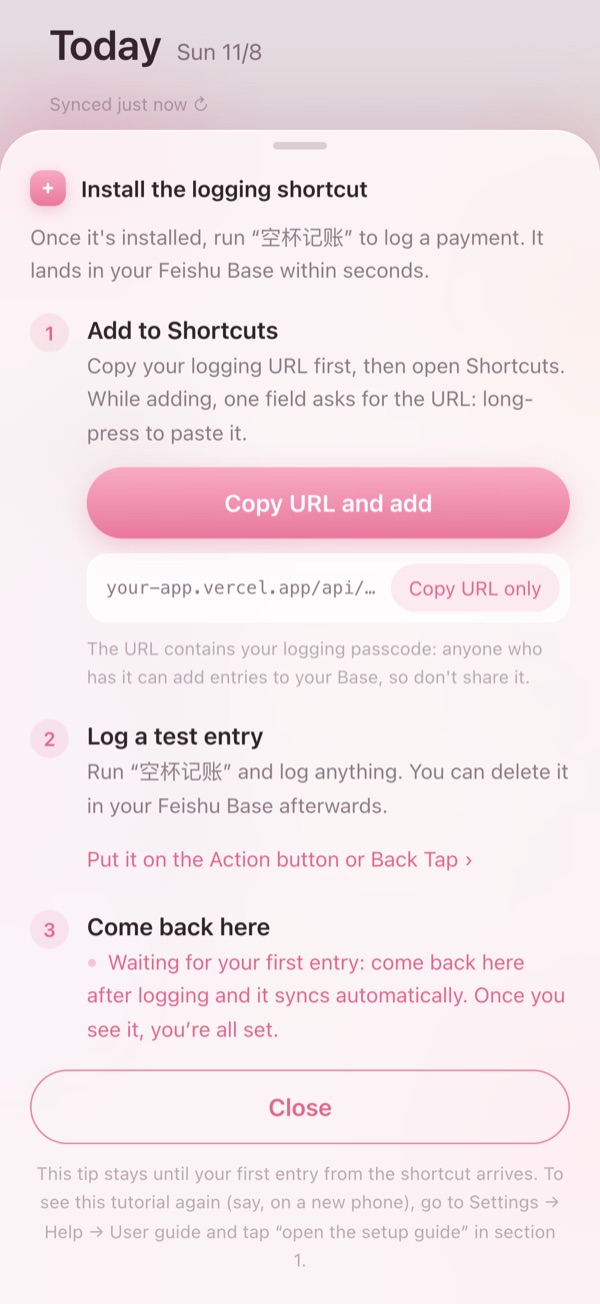
- Add the shortcut: at the top of the Today page there's a strip saying "Install the logging shortcut". Open it and tap Copy URL and add. The add screen has one field for the URL: long-press to paste, then tap "Add Shortcut".
- Log a test entry: run 空杯记账 and log anything, then go back to the dashboard. Once you see that entry, you're set; tap it afterwards to delete it.
What it does each time
- Takes a screenshot (used only during this run; it doesn't go into your photo library).
- Reads the text on the screen right on your phone and finds the amount. The amount needs a decimal point (like 32.00); if none is found it asks you to type it, and if several are found it lets you pick one.
- Asks you to pick a category, then add a note (optional).
- Sends these three things, amount, category and note, to your personal logging URL, which writes them into your ledger.
- Shows a 记好了 ("Logged") notification; if it couldn't log, it tells you why, so nothing gets lost silently.
The categories
🍲 Meals, 🛍️ Everyday, ✨ Experiences, 👌 Growth, 💰 Growth · Big, 🚪 Travel, 🏠 Housing, 🏷️ Gifts, 💳 Income. In the shortcut's menu they show their Chinese names: 一日三餐, 生活日常, 值得体验, 投资蜕变, 投资蜕变·大额, 外出, 住房, 人情, 收入. For income, pick Income and it's saved as a positive number; Housing, Travel and Growth · Big are set aside from everyday spending by default.
Next: bind it to a button
With an Action button, see Log expenses with the iPhone Action button; without one, see Log expenses with Back Tap.
FAQ
What is the personal logging URL?
The address the shortcut sends your entries to, one per person. Whoever has it can only add entries to your ledger; they can't see it. If it gets out, go to Settings → Membership in the dashboard and tap "Get a new passcode": the old URL stops working right away, then reinstall the shortcut once.
It says the logging URL is wrong?
In the dashboard, go to Settings → Help → User guide, tap "open the setup guide", copy the URL again, and replace that field in the shortcut.
Logged, but it's not on the dashboard?
The dashboard syncs on its own at most once a minute; tap the sync time at the top to pull right away.
Haven't started yet? Open it and try it free for 7 days.
Try it free for 7 days →